Visualizzazione post con etichetta obiie. Mostra tutti i post

giovedì 18 ottobre 2012

OBIEE: How to import data from Excel on Windows x64

I experienced some troubles importing data from Excel into OBIEE repository installed on a 64bit Windows machine.

This is not Oracle related, instead it's a Microsoft issue concerning ODBC data sources, this is beacause Win 2008 R2 doesen't comes with the capability of transfer Office data files to other sources (like databases).


Back on my old Windows 2003 adding data from Excel files was an "out-of-the-box" feature, just go to ODBC Data Sources and add your Excel file. 

If you install a 64bit Windows (in my case Windows 2008 Server R2) you will have two different ODBC Data Sources:

- the first is the default one and can be accessed under "Start"-> "Administrative Tools" -> "Data sources ODBC"
- the second is the corresponding 32bit version and is located at: "C:\Windows\System32\odbcad32.exe"

OBIEE uses as default the first one and, unlike Win2003, Excel datasource import is not an "out-of-the-box" feature.

After some searches I found out that it's enough install a Microsoft component that can be downloaded here:

Microsoft Access Database Engine 2010 Redistributable

After this is installed just go to ODBC Data Sources and add your Excel file: "System DNS" -> "Add"


Choose "Microsoft Excel Driver":


Choose a name for your data source, select Excel file from which data will be imported and then continue:


Next step is to open BI Administration Tool, open repository then go to "File"-> "Import Metadata" and choose the previously created Excel datasource.
 

Check all items then proceed:


You will see all sheets and all columns of your Excel file, select the ones you need  and then import them.

You have just imported data from an Excel file and now this data can be used and linked to other data using BI Administration Tool and subsequntly using OBIEE.

That's all!!

martedì 16 ottobre 2012

OBIEE: Data is not being updated on dashboards


Hello!!
It's a bit since last update and today I would like to share something discovered about OBIEE.

I stepped into this problem some days ago while creating OBIEE reports. These reports are based on data from an Oracle database that is being updated by another software.

In detail the problem was: despite the data in database is being updated, these changes are not reflected on OBIEE dashboards, which still present old data.

After a brief search I discovered that OBIEE uses an internal server cache. When dashboard is created OBIEE performs the query against datasource to retrieve and store data. Every subsequent access to these dashboards returns cached data preventing dashboard to redo the query on db at every connection.

To bypass OBIEE server cache and perform the query on db every time you just need to insert a parameter on "Advanced" tab while creating a dashboard.

Click "Advanced" tab, then CHECH "Bypass Oracle BI Presentation Services Cache"
Under "Prefix" insert:

SET VARIABLE DISABLE_CACHE_HIT=1;
Then click "Apply SQL" button.


That's all!!

mercoledì 8 agosto 2012

OBIEE: nQSError 43126 Invalid Username/Password

Today I experienced this trouble with OBIEE: users can't login to BI Presentation Services.

System returned the following error: An invalid User Name or Password was entered.

Although I was perfectly capable of accessing WebLogic Server console and Enterprise Manager console OBIEE didn't let me in.

After a brief investigation in logs located at:

BI_HOME/diagnostics/logs/OracleBIPresentationServicesComponent/coreapplication_obips1

I spotted this error:

WSM-06102 Policy Reference The policy reference URI "oracle/wss_username_token_service_policy" is not valid.

which is an error given by a deplyed component which has gone bad.

This can be verified accessing WebLogic Server Deployment console, wsm-pm component is in error state:


To solve this it's sufficient to re-deploy this component

Click Lock & Edit -> select component wsm-pm -> Update


Click Next -> Finish


Then Activate Changes and verify that wsm-pm can service all requests and is in running state.


Once this is completed you should be able to login to OBIEE presentation Services again!

lunedì 23 luglio 2012

Oracle Middleware: Authentication against Active Directory


I've to admit that user login based on Active Directory credentials for me was a painful process. It took me some weeks to figure out how this works since every tutorial I step into was giving me different interpretations. I had to implement user login based on Active Directory for Oracle UCM so I googled for some guides: some say you need to implement AD authentication both on WebLogic server and on Oracle UCM creating an AD Provider. After trial and error I figured out that the correct method is to enable AD just on WebLogic Server, no Provider or whatsoever is needed on Middleware side.

Please note that since WebLogic server is the webserver on which most (if not all) Oracle Middleware runs Active Directory authentication explained in this post works not just for Oracle UCM but for, I suppose, every other Oracle Middleware. I've successfully applied this to Oracle Business Intelligence too.

So, let's start configuring WebLogic Server. Login to your WLS console that usually is located at:

http://YOUR_MIDDLEWARE_SERVER_IP:7001/console

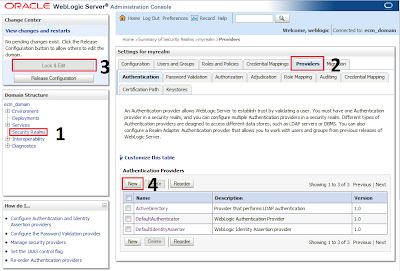
Go to Security Realms -> myrealm -> Providers -> click on Lock & Edit to enable WLS configuration modifications -> click New


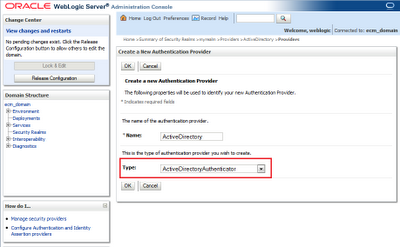
Choose a name for AD provider and in the dropdown menu choose "ActiveDirectoryAuthenticator"


Once provider has been created it's time to edit according to your AD settings.
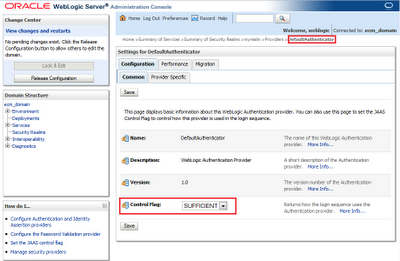
First click on DefaultAuthenticator and be sure that Control Flag is set to SUFFICIENT


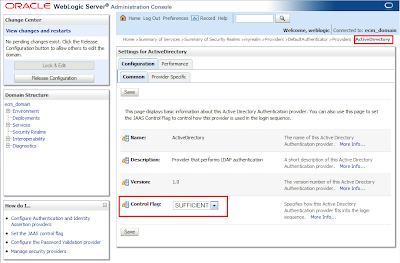
Then click on your newly created ActiveDirectory provider and set Control Flag to SUFFICIENT.


Login to your AD server, you need some informations before continue:
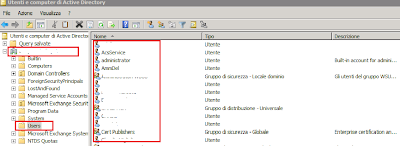


As you can see in the figure above I've all AD users in a folder called Users.Right click on this folder, properties and here you can see the User Base DN.

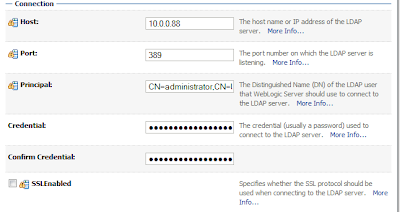
Return to WebLogic Server and on ProviderSpecific tab set:

HOST: YOUR_ACTIVE_DIRECTORY_SERVER_IP
PORT: AD_PORT
PRINCIPAL: CN=administrator,CN=Users,DC=yourdomain,DC=yourdc
CREDENTIAL: administrator password


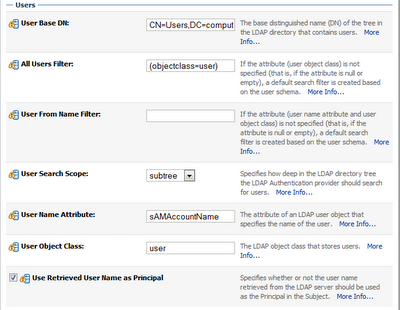
USER BASE DN: CN=Users,DC=yourdomain,DC=yourdc
ALL USERS FILTER: (objectclass=user)
User Name Attribute: sAMAccountName
User Object Class: user
Use Retrieved User Name as Principal: CHECK


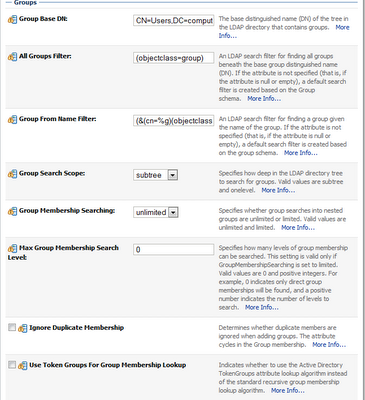
GROUP BASE DN: CN=Users,DC=yourdomain,DC=yourdc
ALL GROUPS FILTER: (objectclass=group)
Group From Name Filter: (&(cn=%g)(objectclass=group))
Group Search Scope: subtree
Group Membership Searching: unlimited
Max Group Membership Search Level: 0
Ignore Duplicate Membership: UNCHECK
Use Token Groups For Group Membership Lookup: UNCHECK


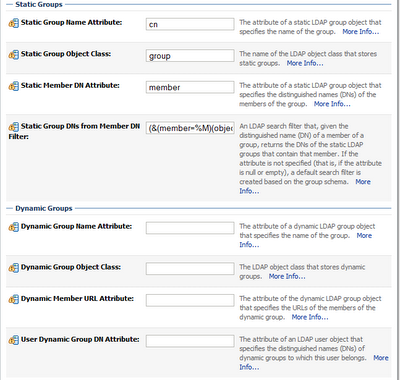
Static Group Name Attribute: cn
Static Group Object Class: group
Static Member DN Attribute: member
Static Group DNs from Member DN Filter: (&(member=%M)(objectclass=group))


Connection Pool Size: 6
Connect Timeout: 0
Parallel Connect Delay: 0
Results Time Limit: 0
Keep Alive Enabled: UNCHECK
Follow Referrals: CHECK
Bind Anonymously On Referrals: UNCHECK
Propagate Cause For Login Exception: CHECK
Cache Enabled: CHECK
Cache Size: 32
Cache TTL: 60
GUID Attribute: objectguid
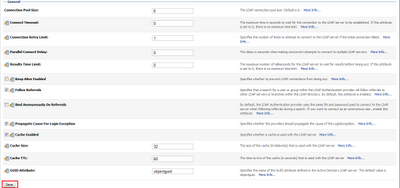


Then press Save -> Release Configuration button and perform a WLS restart.

If everything went fine on WLS restart you should be able to login to your Middleware using AD credentials. If at this point you still can't login using AD please verify that your USER BASE DN and GROUP BASE DN are set correctly according to your AD settings.

That's all!!

giovedì 19 luglio 2012

OBIEE: How to upload existing Repository


A common task performed when OBIEE installation is done it's to load an existing repository. I usually upload an existing repository to my clients just after installing Business Intelligence.

Repository upload is done via Enterprise Manager Fusion Middleware Control and this control panel can be reached at:

http://OBIEE_SERVER_IP_ADDRESS:7001/em/

Expand "Business Intelligence" folder, click "coreapplication", Deployment tab -> Repository tab.
Click "Activate Changes" button then upload a repository from your PC and choose a password. Click Apply and then "Activate Changes" button.


Finally restart OBIEE.


domenica 15 luglio 2012

OBIEE: Creating ASInstance Failed

I've encountered this problem sometimes while installing OBIEE on Oracle Linux: during installation process "Creating ASInstace" task was unable to be completed.

This seems to be a well know issue infact it has a pretty good amount of threads and discussions over OTN and luckily it's simply solvable by editing "/etc/hosts" file.

The trick is to insert first the machine IP address and then loopback address.

Edit host file in a similar way according to your network configuration.


[oracle@orcl ~]$ nano /etc/hosts

10.0.0.20 orcl

127.0.0.1 localhost


Start a new OBIEE installation and this time "Creating ASInstace" will be completed successfully.

mercoledì 27 giugno 2012

Automating Business Intelligence Startup and Shutdown on Linux

It's pretty common to install Oracle Middleware on an "unmanned" server, which means that there's no dedicated server admin or in general a person who could  manually start the services in event of server failure. So I usually create boot scripts that prevent services downtime in case of server restart or server crash.

This script is intended for automate starting of Oracle Business Intelligence on a Linux Server. I run this script on Oracle Linux 6 but this should work on other distributions too.

[root@orcl ~]# nano /etc/init.d/bi


#! /bin/bash
#
# OBIEE Start/Stop Script
#
# chkconfig: 345 20 80
# description: Starts and stops the Oracle BI and listeners
#
# Set BI_HOME to be equal to the $ORACLE_HOME
#
# Set ORA_OWNER to the user id of the owner of the OBIEE.

BI_HOME=/home/oracle/obiee
ORA_OWNER=oracle

export ORACLE_INSTANCE=$BI_HOME/instances/instance1

start()
    {
        echo "Starting BI service "
        su $ORA_OWNER -c "$BI_HOME/Oracle_BI1/opmn/bin/opmnctl startall"
        su $ORA_OWNER $BI_HOME/user_projects/domains/bifoundation_domain/startWebLogic.sh > /dev/null 2>&1 &
    }

stop()
    {
        echo "Stopping BI service "

        su $ORA_OWNER -c "$BI_HOME/Oracle_BI1/opmn/bin/opmnctl stopall"
        su $ORA_OWNER $BI_HOME/user_projects/domains/bifoundation_domain/bin/stopWebLogic.sh > /dev/null 2>&1 &
    }

# See how we were called.
case "$1" in
    start)
        start
    ;;
    stop)
        stop
    ;;
    status)
        status -p $pidfile $processname
        RETVAL=$?
    ;;
    restart)
        stop
        start
    ;;
    condrestart)
        if [ -f /var/lock/subsys/$servicename ]; then
            stop
            start
        fi
    ;;
    *)
        echo $"Usage: $0 {start|stop|status|restart|condrestart}"
    ;;
esac

exit $RETVAL

Chmod this script and make it executable on boot

[root@orcl ~]# chmod 750 /etc/init.d/bi

[root@orcl ~]# chkconfig --add bi

We need to allow Weblogic autostart forcing username and password, I know it's a security risk display username and password in plaintext, since by default Oracle stores passowrd information in boot.properties by encryprint using AES.

[root@orcl ~]# nano /home/oracle/obiee/user_projects/domains/bifoundation_domain/servers/AdminServer/security/boot.properties

password=YOUR_WEBLOGIC_PASSWORD_HERE
username=YOUR_WEBLOGIC_USERNAME_HERE

[root@orcl ~]# chown oracle /home/oracle/obiee/user_projects/domains/bifoundation_domain/servers/AdminServer/security/boot.properties

Now everything should work as expected!!

Try if everything works fine:

[root@orcl ~]# /etc/init.d/bi start

If you would like to have Weblogic output you can modify script, though I suggest to leave output redirection enabled, maybe change it from /dev/null to an appropriate log file.

su $ORA_OWNER $BI_HOME/user_projects/domains/bifoundation_domain/startWebLogic.sh &

On start Weblogic returned this error:

PKI-02002: Unable to open the wallet. Check password.

which was solved chmodding /tmp directory

chmod -R 777 /tmp

That's all!!