I've to admit that user login based on Active Directory credentials for me was a painful process. It took me some weeks to figure out how this works since every tutorial I step into was giving me different interpretations. I had to implement user login based on Active Directory for Oracle UCM so I googled for some guides: some say you need to implement AD authentication both on WebLogic server and on Oracle UCM creating an AD Provider. After trial and error I figured out that the correct method is to enable AD just on WebLogic Server, no Provider or whatsoever is needed on Middleware side.
Please note that since WebLogic server is the webserver on which most (if not all) Oracle Middleware runs Active Directory authentication explained in this post works not just for Oracle UCM but for, I suppose, every other Oracle Middleware. I've successfully applied this to Oracle Business Intelligence too.
So, let's start configuring WebLogic Server. Login to your WLS console that usually is located at:
http://YOUR_MIDDLEWARE_SERVER_IP:7001/console
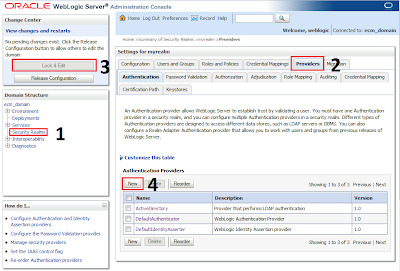
Go to
Security Realms ->
myrealm ->
Providers -> click on
Lock & Edit to enable WLS configuration modifications -> click
New
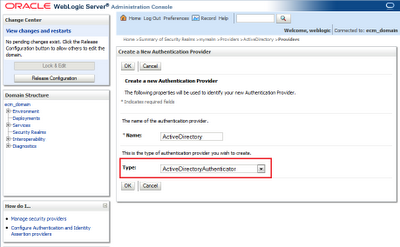
Choose a name for AD provider and in the dropdown menu choose "
ActiveDirectoryAuthenticator"
Once provider has been created it's time to edit according to your AD settings.
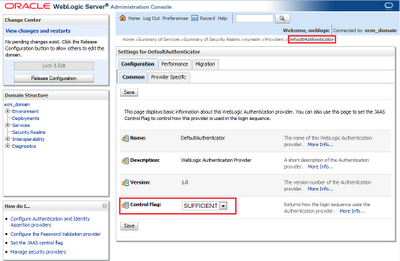
First click on
DefaultAuthenticator and be sure that Control Flag is set to
SUFFICIENT
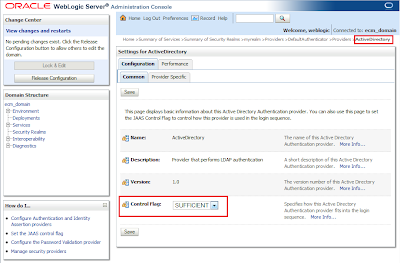
Then click on your newly created
ActiveDirectory provider and set Control Flag to
SUFFICIENT.
Login to your AD server, you need some informations before continue:
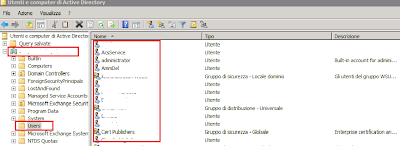
As you can see in the figure above I've all AD users in a folder called Users.Right click on this folder, properties and here you can see the
User Base DN.
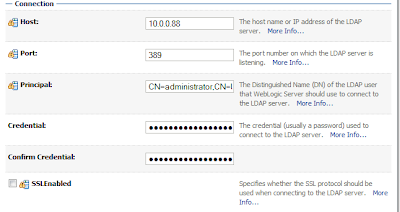
Return to WebLogic Server and on ProviderSpecific tab set:
HOST: YOUR_ACTIVE_DIRECTORY_SERVER_IP
PORT: AD_PORT
PRINCIPAL: CN=administrator,CN=Users,DC=yourdomain,DC=yourdc
CREDENTIAL: administrator password
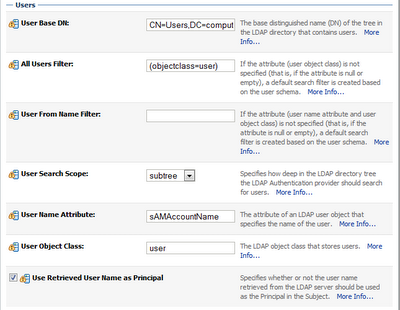
 USER BASE DN: CN=Users,DC=yourdomain,DC=yourdc
ALL USERS FILTER: (objectclass=user)
User Name Attribute: sAMAccountName
User Object Class: user
Use Retrieved User Name as Principal: CHECK
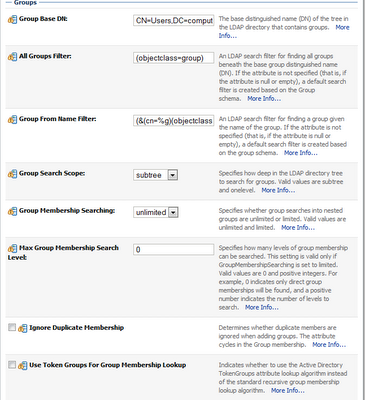
 GROUP BASE DN: CN=Users,DC=yourdomain,DC=yourdc
ALL GROUPS FILTER: (objectclass=group)
Group From Name Filter: (&(cn=%g)(objectclass=group))
Group Search Scope: subtree
Group Membership Searching: unlimited
Max Group Membership Search Level: 0
Ignore Duplicate Membership: UNCHECK
Use Token Groups For Group Membership Lookup: UNCHECK
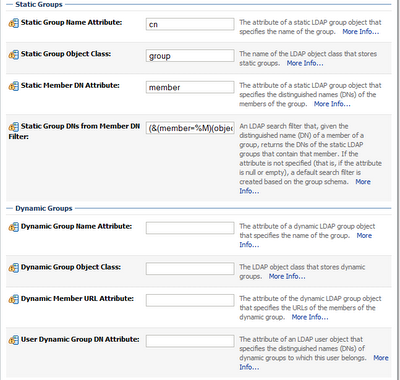
 Static Group Name Attribute: cn
Static Group Object Class: group
Static Member DN Attribute: member
Static Group DNs from Member DN Filter: (&(member=%M)(objectclass=group))
 Connection Pool Size: 6
Connect Timeout: 0
Parallel Connect Delay: 0
Results Time Limit: 0
Keep Alive Enabled: UNCHECK
Follow Referrals: CHECK
Bind Anonymously On Referrals: UNCHECK
Propagate Cause For Login Exception: CHECK
Cache Enabled: CHECK
Cache Size: 32
Cache TTL: 60
GUID Attribute: objectguid
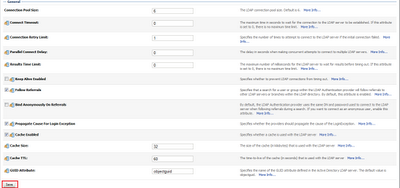
Then press
Save ->
Release Configuration button and perform a WLS restart.
If everything went fine on WLS restart you should be able to login to your Middleware using AD credentials. If at this point you still can't login using AD please verify that your
USER BASE DN and
GROUP BASE DN are set correctly according to your AD settings.
That's all!!


